The Best Google Tasks Tips To Keep Your Life On Track

When you’re a busy person, it can often be tricky trying to stay on top of everything. Stuff has the habit of slipping through the cracks because you’ve simply got too much on your plate. Thankfully, this is where technology can come to the rescue. In particular, Google Tasks can help to ensure you never face issues like this again.
This free app makes it so much easier to organize daily activities, keep track of all your deadlines, and so much more. If you’ve never used it before, now is definitely the time to change, especially with the best Google Task tips to ensure you make the most of this amazing app.
Set up weekly reminders for recurring tasks that are consistent
Have specific tasks that you repeat every week? If so, you’ll want to set up recurring tasks on your Google Tasks app. To do this, click to create a new task and open the calendar to select when you want it to start. It’s here you’ll also choose how long you want it to repeat, whether that be weekly, bi-weekly, monthly, or something else. You can also decide when you want it to end, assuming that you know when this recurring task will no longer be necessary. Don’t forget to select the clock icon to decide what time of the day you want to be reminded of this task, then you’re done.
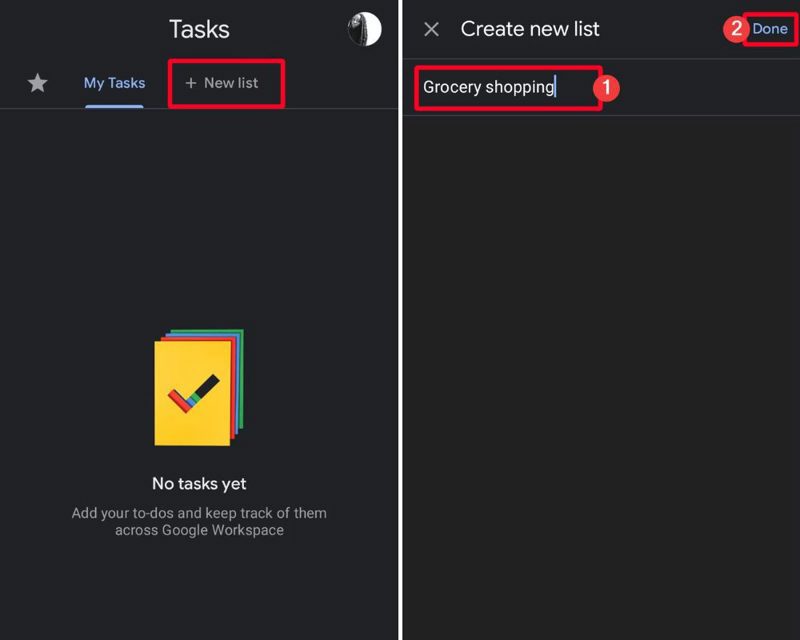
The list function lets you keep track of things like groceries
One of the best uses that Google Tasks has is to create lists. You’ll likely find throughout your daily life that you need certain lists, such as for groceries. Thankfully, putting one of these together in the app is incredibly simple. All you have to do is select “+ New list,” type in what you want to name it, then start filling it in. Once you’ve put down everything you need, you can then press “Done,” with the opportunity to make changes as and when they’re needed.
Reminders in Google Assistant can easily be transferred to Google Tasks
There’s plenty of synchronicity between Google apps. However, one place where that isn’t the case is between Google Assistant and Google Tasks. If you create a reminder in the former, it apparently won’t appear in the latter, which can be quite frustrating. Thankfully, there is a way to quickly transfer anything that you’ve put into Google Assistant in your Tasks app. You simply need to select your profile icon in the latter, then choose “Task settings” and “Move reminders to Tasks.” It will then ask which list you want to move the reminders to before completing the request.
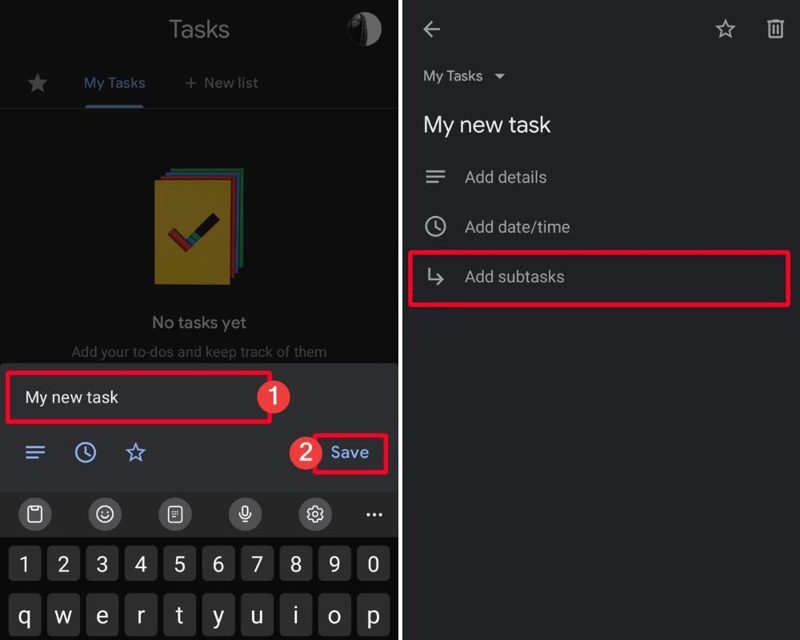
Create subtasks to make bigger jobs feel more manageable
It can sometimes feel overwhelming when you have a huge task to deal with. That’s why it’s beneficial to break up anything like this into a selection of subtasks. Not only does this make everything more manageable, but it also makes it easier to see what your priorities are. You can make subtasks on the Google app by creating a new task, saving it, then selecting “Add subtasks” in the menu. Give that subtask a name, and then keep doing this for all of the subtasks that you need. If you want to give each of them a description, the “Add details” option allows you to type in 700 words for every subtask.
Move emails to Google Tasks if they’re relevant to your work
Some of your essential tasks may well be in your emails if they’ve been assigned by someone that you work with. If you use Gmail, it’s not too tricky to move certain emails to your Google Tasks app so that you can see everything in one place. To do this, go to the Gmail app and select the email that you wish to transfer to Google Tasks. Press the three-dot symbol and select “Add to Tasks,” and it will do as requested. Unfortunately, you reportedly can’t move more than one email at a time, so the speed of this process depends on how many task emails you have.
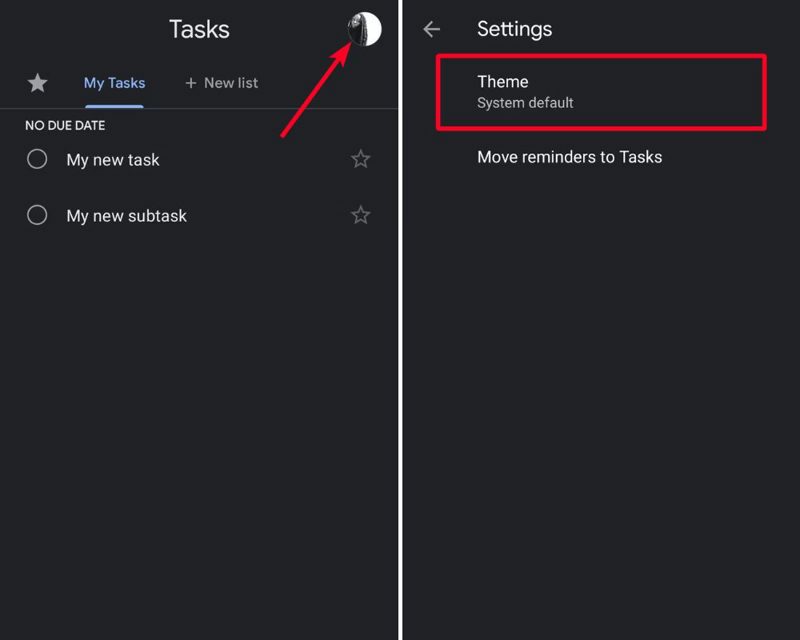
Reduce eye strain by switching your Google Tasks app to dark mode
The amount of time we spend looking at screens these days isn’t good for our eyes. Thankfully, we can make things slightly better by using dark mode. This reduces eye strain at night and can actually make it easier to fall asleep. If you want your Google Tasks app to make use of this you simply have to go to “Task settings” and “Theme” from your profile icon. If your smartphone already utilizes dark mode, this should reflect in the app itself if the theme is set to “System default.” If it’s not, though, then you can just change it to “Dark.”
The Google Tasks app is all about making your life simpler, and these tips should ensure that you get the most out of it. With any luck, completing jobs - whether they be important work assignments or regular chores - should become much more of a walk in the park.
You May Also Like
 Finance
How to Build a Watchlist Without Chasing Hype
 Finance
Why Market Timing Is So Tempting
 Finance
FOMO Trades and How They Start